Troubleshooting & Analysis
Two carts on the shelf, twenty-three dollars between them
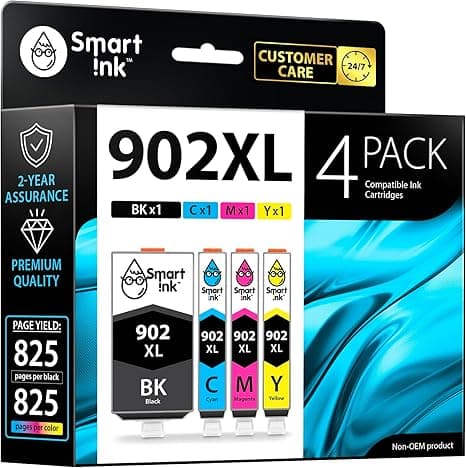
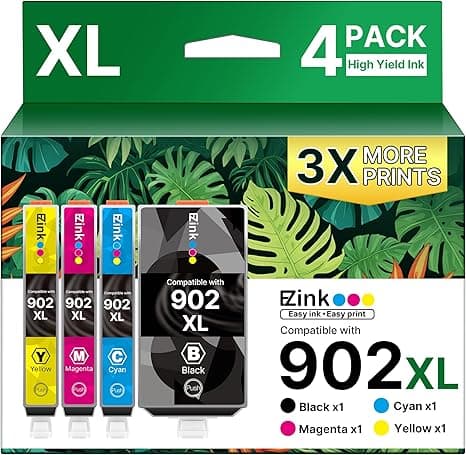
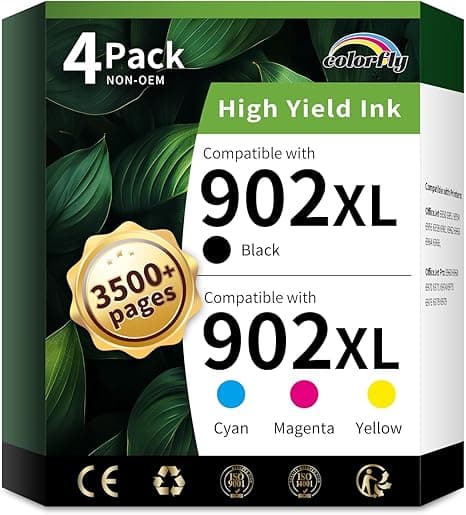
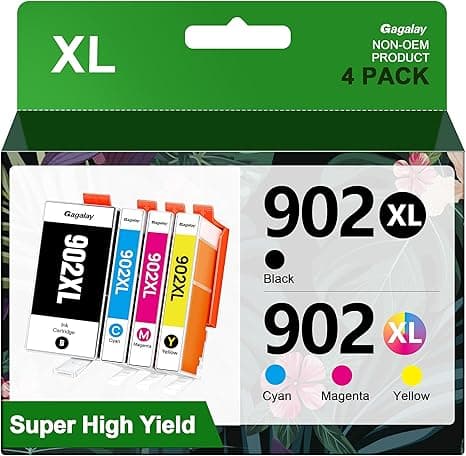
I was standing in the office-supply aisle holding a genuine HP high-yield cartridge in one hand — $45, right there on the sticker — and a generic compatible one for my OfficeJet 6978 in the other, marked $22. Same yield claim. Same part footprint. A twenty-three dollar gap for what is, functionally, a plastic box full of ink. And I just stood there. Because I'd been burned before by a no-name cart that printed three pages of magenta sludge and then quit, so I genuinely didn't know if the cheap one was a smart move or a forty-minute cleaning-cycle headache waiting to happen.
I bought the compatible. Then I bought a second one to keep as a spare so I could actually watch how it aged. Here's everything that happened.
The math that made me do it
The HP 6978, 6958, and the 750-series all sip from the same family of cartridges, and HP has priced the genuine high-yield set like it's printing money — which, honestly, it kind of is. A genuine high-yield black runs me around $45. The compatible I grabbed was $22. If you print the way I do — a couple hundred pages a month, mostly shipping labels, a kid's school project, the occasional photo — you're going through, call it, four to six black cartridges a year. That's the difference between roughly $180 and $90 annually on black alone. Add the color set and the gap gets uglier in HP's favor.
So the question was never "is the genuine one nicer." Of course it is. The question was whether the compatible one is good enough that paying double stops making sense. For my use, it stopped making sense around page thirty.
Does it actually seat? Yes — with one quirk
Install is the part people worry about, and it's the part that's basically a non-event. I opened the cover, waited for the carriage to slide over and stop, pressed the little tab to pop the old cart loose, and pulled it. Peeled the protective tape off the new one — and this matters, peel all of it, including the thin strip over the contacts, because a stray bit of tape is the number-one reason these things throw a "cartridge missing" error. Slid it in until I felt the click. Ran a test print. Done in under two minutes.
The one quirk: the molded plastic on the compatible is a hair less crisp than HP's. It seated fine, clicked fine, but the fit in the carriage felt a touch looser than the genuine cart — not rattling, just less of that machined snugness. Four months in, it has never once shifted or mis-fed, so I've stopped thinking about it. But I noticed it on day one and you probably will too.
The honest performance read
Black text is where these compatibles have gotten genuinely close. Shipping labels, invoices, a 12-page PDF in plain Arial — I cannot tell my output apart from the genuine cartridge's. Sharp edges, solid fill, no ghosting. For document work this thing pulls its full weight.
Color is where I'll be straight with you. On plain paper, for charts and a kid's worksheet, it's indistinguishable. On glossy photo paper, side by side with a genuine print, the compatible skews very slightly warmer and the deepest shadows aren't quite as deep. We're talking a difference I only caught because I lined two prints up under a lamp on purpose. If you're printing portfolio photos for a client, buy genuine. If you're printing a birthday banner and the occasional vacation snapshot for the fridge, you will never notice, and I mean never.
The downsides — and there are real ones
I promised myself I'd never write one of those reviews where everything is sunshine, so here's the unvarnished list.
First, the ink-level monitor lies. HP's software will flag a compatible cart as "low" or "non-genuine" and sometimes refuse to show an accurate level, dropping you to a guessing game. You'll get a pop-up warning you about non-HP ink — you click through it once, check the "don't show again" box, and move on. Mildly annoying the first time, forgettable after. But know it's coming so it doesn't spook you into thinking you got a dud.
Second, consistency across the batch isn't perfect. Of the spare carts I've run, one started a touch faint for the first half-page before evening out — a quick cleaning cycle sorted it, but that's ink you paid for, sprayed onto a cleaning pad. With genuine carts I've never had to do that. It's the kind of small tax you pay for the lower price.
Third, the packaging is flat-out cheap. Thin plastic clamshell, a sticker that's slightly crooked, none of HP's reassuring heft. It doesn't affect the print one bit, but if unboxing confidence matters to you, this ain't it. And I'd add: buy a name you can find reviews for, because the floor on these no-name carts is genuinely bad — that magenta-sludge cartridge I mentioned was the cheapest one I could find, and you get what you pay for at the very bottom.
Why a dead cartridge actually matters
The reason I keep a spare at all: running dry mid-job on these HP units isn't just a refill errand. Let the black sit empty too long and the printhead can start to dry, and now you're babysitting cleaning cycles to clear a clog instead of just printing. A cartridge that quits at the wrong moment — the night before a deadline, the morning of a school form due at 9am — turns a $22 problem into a lost hour. At compatible prices, keeping a backup in the drawer costs almost nothing, and it's the single best habit I've picked up. Don't run these to fumes.
Who should buy genuine — and who should grab this
Buy the genuine HP cartridge if you print photos that matter, if you hate even a single software nag, or if you print so rarely that one cart lasts you a year and the savings are pocket change anyway. For low-volume photo people, the price gap just isn't worth the tradeoffs.
For everyone else — the home office, the small business cranking labels and invoices, the family printer doing homework and forms — the compatible cart for the 6978/6958/750 is an easy call. Same crisp text, color that's fine for anything but gallery prints, a two-minute install, and twenty-three dollars back in your pocket every single time. I've reordered mine twice now. That's the most honest endorsement I can give: I keep spending my own money on it. Just don't run it to empty, peel all the tape, and click past the nag screen. You'll be fine.